These instructions were written under assumption that you have basic understanding of WordPress and how to install and activate themes, and plugins. Otherwise check out Getting Started with WordPress to get familiar with the platform.
In order to achieve similar results as shown on the SimpleRealtyTheme.com, you need to download and install the plugins listed below. Please note:Thematic Framework is required, the rest of the plugins are optional if you don’t need their functionality.
Unzip and copy your Simple Realty and Thematic files into /wp-content/themes folder of your WordPress installation.
Unzip and copy all the plugins into /wp-content/plugins folder.
Activate the Simple Realty Theme, and all the plugins that you uploaded, from the WordPress Dashboard.
Theme Settings
Simple Realty Theme settings are located under Appearance section of the WordPress dashboard and named "Simple Realty Admin".
Header
You can upload your custom logo which will appear in the upper left corner of the header.
In the Agent Block you can enter your name and phone number as well as upload agent’s/representative’s photo. These settings are optional.
Header Image Dimensions and Layout give you choices of 3 header layouts as well as flexibility to adjust the header image height. After you pre-set your header image height, you need to upload your header images via Custom Header page under the Appearance. All newly uploaded header images will be automatically cropped according to your header height settings.
Layouts
The Layouts Settings consist of 2 columns: left contains Default Page Type Layouts and Template Layouts, and the right column has Layout Columns Width.
Default Page Type Layouts area allows you to assign custom layouts to WordPress default pages. For example: Home Page, Blog’s Main Page, Single Post or Search Results page etc. Usually, every theme has the same layouts throughout all the pages, but Simple Realty allows you to assign different layouts to different pages to better cater to your visitors’ experience.
In the Template Layouts area you can assign different layouts to the templates that you can use on page per page basis from the page editor. For example, let’s say your default page templates include 2 sidebars, and you desided that your listing pages need to have only single sidebar or no sidebars at all – you can define it here under Template Layoust.
Layout Columns Width allows you to customise the width of your sidebars. This way you can adjust your sidebars the way you desire if you feel that they are too wide or too narrow.
Color Schemes
If you purchased only 1 color scheme, this setting is irrelevant to you.
If you have multiple color schemes or bought all 9 styles, they will appear in this section and you can activate any desired color.
Fonts
Fonts section allows you to customize font family tipes for the body of the content as well as titles and subtitles throughout the site.
Navigation/Menus
Simple Realty Theme supports native WordPress Menus option which is located in the Dashboard under the Appearance section. You can create multiple menus there, but only the first one (first created) will be automatically used as Top Navigation. Other menus that you create there can be placed into sidebars via Widgets dashboard.
Simple Realty Theme also supports Simple Sidebar Navigation plugin. This plugin can be used to create sidebar navigation as well as top navigation (instead of the native WordPress menus).
Creating a Static Home Page & Permalinks
By default, WordPress puts your blog on the Home/Front Page of the site. Since we’re creating a business site, blog’s role becomes rather supportive, than a main feature. So, we need to create a static home page and move our blog to an internal page. Here is how to do it:
Create a new page, which will represent your Home/Front Page. You can enter the right titles, meta data and content later, or you can do it right away.
Create a new blank page for the blog. Just enter the desired title and make sure you URL or slug is set to what you want (like “blog” or “news” or “journal”) – because that’s where you blog’s main page will be located and all posts will extend that URL.
Go to the Settings => Reading.
Under the Front Page Display check radio button “A static page”.
Select your Front Page that you just created
and the Blog’s page as the Posts Page
Save.
Go to Settings => Permalinks
Select “Custom Structure” and enter this line /blog/%postname%/
Make sure you change the work “blog” to whatever slug you entered in the step 2 when created Blog’s main page.
Save.
That’s it.
Here is a 3 minute video that walks you through those steps:
Framing an IDX Solution
To frame an IDX solution into your WP web site you need to:
Embedding an iFrame
Create a new page.
Scroll down the page editor to the Advanced Options and expand the “Custom Fields” section. In the “Key” field enter “iframe” (no quotation marks), and
in the Value field enter this iframe HTML code:
Make sure you isert your own IDX URL into the SRC attribute of the iframe. You can adjust the height of iframe to fit your IDX solution, but keep the
default with to ensure that it doesn’t break the design.
Scroll down to “Page Template” section and select “No Sidebars” template from the selection list. You can use this template for any other pages that
do not require sidebars.
Recommended Plugins Manual
Great Real Estate
This plugin allows you to create and manage property listings. It includes a number of great features like property photo galleries, sideshow, maps and more. Additional options may require other plugins to be installed. In this manual I cover the NextGen Gallery – the photo gallery plugin, since I think it should be a minimum required setup for any real estate web site. For the rest of the available options (panoramas and videos) refer to the Great Real Estate author web site.

Setup
Download and activate the Great Real Estate and the NextGen Gallery plugins.
Create a blank page (Write => Page):
Name this page as “My/Our/Featured Listings” or anything related to that. This page will be the main page for your property listings.
In the page editing screen, select Page Template by the name” List of Listings” and publish your page.
Go to Real Estate => Settings and set up your Listing Features as it shown on these screenshots:
Great Real Estate Settings
If you have installed the Simple Real Estate Pack, then you don’t need the Google Maps API key.
Don’t forget to save your settings by clicking on the “Update Options” button at the bottom of the page.
Go to Gallery => Options. Set up your options the same as on the screenshots below:
General Options*
Thumbnails
Images
Gallery
Effects
Watermark
Slideshow
* Make sure your Gallery folder is writable. In my case I had to change the folder permissions to 777. You can do this via an FTP client or your host administrative interface.
Using the Great Real Estate Plugin
Adding property listings is a 2-step process which consists of (1) uploading photos and (2) entering listing data. If you have your photos available, than I would recommend adding them first – it just streamlines the process. Otherwise there is no big different which step you do first.
Uploading Photos
Go to Gallery => Add Gallery and create a new gallery. Name it with an
MLS number or something you can easley relate this gallery to a specific property
listing.
In the same screen go to Upload Images.
Choose the newly created gallery from the Selection List and upload your images.
(Optional) If you would like to change order of your images or create descriptive “alt” text for your photos go to Manage Gallery, and then click edit for the gallery you would like to make changes for. Always remember to save all your changes.
Adding Property Listing
Go to Write => Page. The title of the page will be the title of your listing and the page’s body will be a description of your property.
Scroll down and click on the “Real Estate Property Information” bar to expand it.
Fill out the property details.
If you checkmark your listing as a “Featured” property (the first option), it will appear in the Featured Listings widget.
In the Multimedia Content section, from the NextGen Gallery selection list, choose your image gallery that belongs to the listing.
Scroll down and click on the “Page Parent” bar to expand it.
Select the main Listings page you created in the “Setup” section in the step 2.
Next, click on “Page Template” to expand it and select “Listing Page” template.
Publish the page/listing.
Creating a Featured Listings Widget
Additional TipsGeneral Options*
If you add property listing information first, and upload photos later, all you need to do is to edit your listing, and choose the right image gallery from the NextGen Gallery selection list.
In the property description (the page’s body) you can use the “more” tag in order to create a shorter teaser which will appear on the main Listings page (it works the same as blog post teasers).
Simple Sidebar Navigation
This is a very easy-to-use plugin that allows to create custom top- and side-navigation. In addition to that, you can create multiple navigation widgets (or menus) and place them on specific pages or sections for your web site.
The Advanced Text Widget is a regular text widget that allows you to include PHP code as well as setup conditions to appear on specific pages, posts, categories by their IDs or page slugs.
Blog Categories Setup
Add the Advanced Text widget to one of your sidebars (in my case it is Primary Aside).
Leave the Title empty and copy and paste the following PHP code:<?php
echo '<h2 class="widgettitle">Blog Categories</h2>';
echo '<ul>';
wp_list_categories('orderby=name&title_li=');
echo '</ul>';
?>You can edit the title of this block in the code between the H2 tags.
Blog Categories with Advanced Text Widget
Select “Display only on” – “Blog Main Page, Posts and Archives”.
Add the slug of your blog’s main page (in my case just “blog” without the quotation marks).
Save.
cforms
One of my favorite plugins that allows to create any type of forms, set up automatic responders and manage leads. This plugin is very extensive, and can seem a bit complicated at first, but it’s worth spending some time figuring out its basics and setting up the forms. After that you’ll be set for awhile and, I’m sure, you will enjoy the ride The cforms plugin has it’s own in-depth built-in Help section with screenshots and step-by-step instructions. I definitely couldn’t do a better job, so read the cforms Help. To see an example of what kind of form you can create, take a look at my demo pages for Buyers and Sellers.
All in One SEO Pack
Instructions of how to use this plugin can be found here. Also you can watch a video tutorial.
vSlider
This plugin can turn your header into an elegant slideshow. After activation, go into the Custom Header settings and upload a few more header images. Only last uploaded image will appear on the settings page, but all of them will be saved in the media library automatically. The reason I suggest to go through this uploader is because it crops images with correct dimensions to fit the header settings.
Open a new browser window. We need to do this because we’ll be copying image paths from one page to another – that’s why you need 2 windows at the same time. In first window open your Medial Library. In the second – go to the vSlider settings.
In the Media Library open each uploaded header image, copy their URLs and paste them into the vSlider under the Custom Image Setup one by one.
Make sure vSlider General Settings width and height match your header image dimensions (you can find them under Appearance => Simple Realty Admin => Header tab). Also, “Display images from” needs to be set to “My Custom Images”. And don’t forget to SAVE.
As a reference, take a look at the vSlider settings in my demo:
Simple Realty Theme User Manual
These instructions were written under assumption that you have basic understanding of WordPress and how to install and activate themes, and plugins. Otherwise check out Getting Started with WordPress to get familiar with the platform.
Table of Contents- Files and Plugins you Need to Download
- Theme Settings
- Creating a Static Home Page & Permalinks
- Creating an iframe (you can iframe an IDX Solution)
- Recommended Plugins Manual
- Great Real Estate
- Simple Sidebar Navigation
- Advanced Text Widget
- Cforms
- All in One SEO Pack
- vSlider
Files and Plugins You Need to Download
In order to achieve similar results as shown on the SimpleRealtyTheme.com, you need to download and install the plugins listed below.
Please note: Thematic Framework is required, the rest of the plugins are optional if you don’t need their functionality.
Installation:
Theme Settings
Simple Realty Theme settings are located under Appearance section of the WordPress dashboard and named "Simple Realty Admin".
Header
You can upload your custom logo which will appear in the upper left corner of the header.
In the Agent Block you can enter your name and phone number as well as upload agent’s/representative’s photo. These settings are optional.
Header Image Dimensions and Layout give you choices of 3 header layouts as well as flexibility to adjust the header image height. After you pre-set your header image height, you need to upload your header images via Custom Header page under the Appearance. All newly uploaded header images will be automatically cropped according to your header height settings.
Layouts
The Layouts Settings consist of 2 columns: left contains Default Page Type Layouts and Template Layouts, and the right column has Layout Columns Width.
Default Page Type Layouts area allows you to assign custom layouts to WordPress default pages. For example: Home Page, Blog’s Main Page, Single Post or Search Results page etc. Usually, every theme has the same layouts throughout all the pages, but Simple Realty allows you to assign different layouts to different pages to better cater to your visitors’ experience.
In the Template Layouts area you can assign different layouts to the templates that you can use on page per page basis from the page editor. For example, let’s say your default page templates include 2 sidebars, and you desided that your listing pages need to have only single sidebar or no sidebars at all – you can define it here under Template Layoust.
Layout Columns Width allows you to customise the width of your sidebars. This way you can adjust your sidebars the way you desire if you feel that they are too wide or too narrow.
Color Schemes
If you purchased only 1 color scheme, this setting is irrelevant to you.
If you have multiple color schemes or bought all 9 styles, they will appear in this section and you can activate any desired color.
Fonts
Fonts section allows you to customize font family tipes for the body of the content as well as titles and subtitles throughout the site.
Navigation/Menus
Simple Realty Theme supports native WordPress Menus option which is located in the Dashboard under the Appearance section. You can create multiple menus there, but only the first one (first created) will be automatically used as Top Navigation. Other menus that you create there can be placed into sidebars via Widgets dashboard.
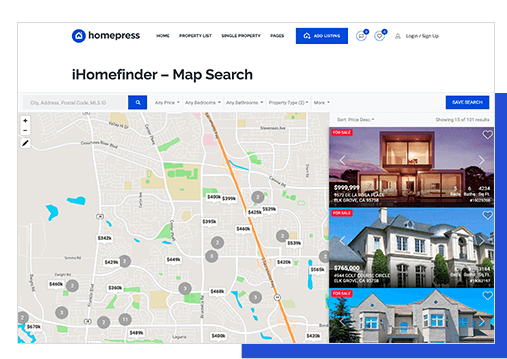
Simple Realty Theme also supports Simple Sidebar Navigation plugin. This plugin can be used to create sidebar navigation as well as top navigation (instead of the native WordPress menus).
Creating a Static Home Page & Permalinks
By default, WordPress puts your blog on the Home/Front Page of the site. Since we’re creating a business site, blog’s role becomes rather supportive, than a main feature. So, we need to create a static home page and move our blog to an internal page. Here is how to do it:
That’s it.
Here is a 3 minute video that walks you through those steps:
Framing an IDX Solution
To frame an IDX solution into your WP web site you need to:
in the Value field enter this iframe HTML code:
default with to ensure that it doesn’t break the design.
do not require sidebars.
Recommended Plugins Manual
Great Real Estate
This plugin allows you to create and manage property listings. It includes a number of great features like property photo galleries, sideshow, maps and more. Additional options may require other plugins to be installed. In this manual I cover the NextGen Gallery – the photo gallery plugin, since I think it should be a minimum required setup for any real estate web site. For the rest of the available options (panoramas and videos) refer to the Great Real Estate author web site.
Setup
General Options*
Thumbnails
Images
Gallery
Effects
Watermark
Slideshow
* Make sure your Gallery folder is writable. In my case I had to change the folder permissions to 777. You can do this via an FTP client or your host administrative interface.
Using the Great Real Estate Plugin
Adding property listings is a 2-step process which consists of (1) uploading photos and (2) entering listing data. If you have your photos available, than I would recommend adding them first – it just streamlines the process. Otherwise there is no big different which step you do first.
Uploading Photos
MLS number or something you can easley relate this gallery to a specific property
listing.
Adding Property Listing
Creating a Featured Listings Widget
Additional TipsGeneral Options*
Simple Sidebar Navigation
This is a very easy-to-use plugin that allows to create custom top- and side-navigation. In addition to that, you can create multiple navigation widgets (or menus) and place them on specific pages or sections for your web site.
Instructions and demo video are available in my blog.
Advanced Text Widget
The Advanced Text Widget is a regular text widget that allows you to include PHP code as well as setup conditions to appear on specific pages, posts, categories by their IDs or page slugs.
Blog Categories Setup
<?phpYou can edit the title of this block in the code between the H2 tags.echo '<h2 class="widgettitle">Blog Categories</h2>';
echo '<ul>';
wp_list_categories('orderby=name&title_li=');
echo '</ul>';
?>
Blog Categories with Advanced Text Widget
cforms
One of my favorite plugins that allows to create any type of forms, set up automatic responders and manage leads. This plugin is very extensive, and can seem a bit complicated at first, but it’s worth spending some time figuring out its basics and setting up the forms. After that you’ll be set for awhile and, I’m sure, you will enjoy the ride
The cforms plugin has it’s own in-depth built-in Help section with screenshots and step-by-step instructions. I definitely couldn’t do a better job, so read the cforms Help. To see an example of what kind of form you can create, take a look at my demo pages for Buyers and Sellers.
All in One SEO Pack
Instructions of how to use this plugin can be found here. Also you can watch a video tutorial.
vSlider
This plugin can turn your header into an elegant slideshow. After activation, go into the Custom Header settings and upload a few more header images. Only last uploaded image will appear on the settings page, but all of them will be saved in the media library automatically. The reason I suggest to go through this uploader is because it crops images with correct dimensions to fit the header settings.
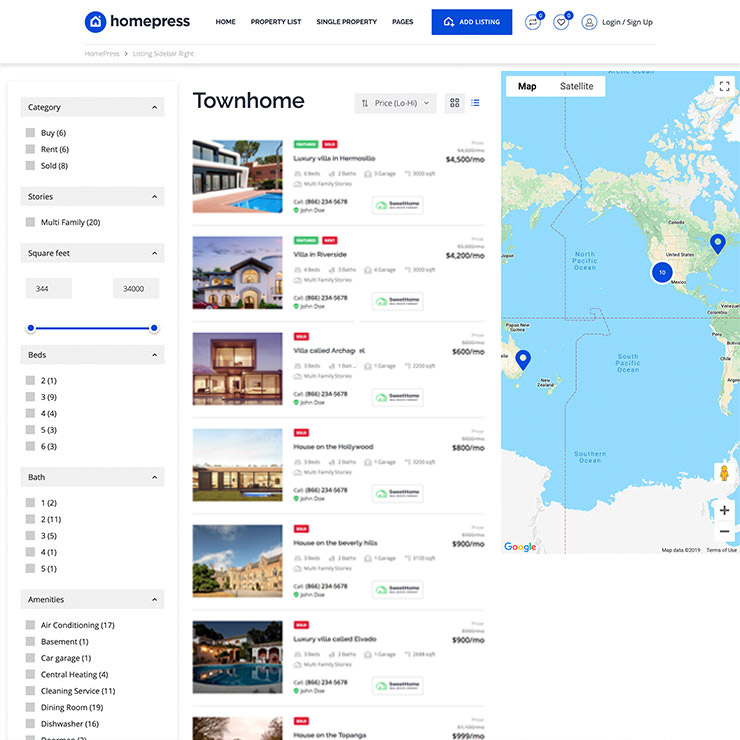
Open a new browser window. We need to do this because we’ll be copying image paths from one page to another – that’s why you need 2 windows at the same time. In first window open your Medial Library. In the second – go to the vSlider settings.
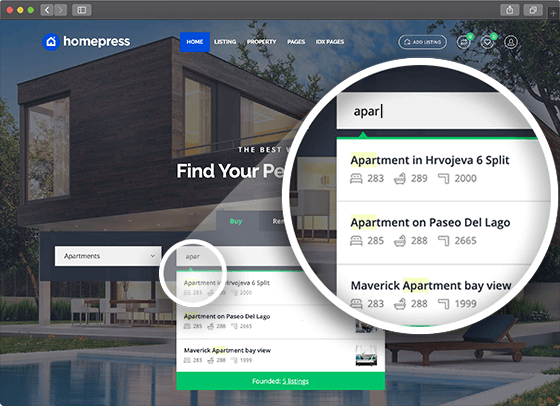
In the Media Library open each uploaded header image, copy their URLs and paste them into the vSlider under the Custom Image Setup one by one.
Make sure vSlider General Settings width and height match your header image dimensions (you can find them under Appearance => Simple Realty Admin => Header tab). Also, “Display images from” needs to be set to “My Custom Images”. And don’t forget to SAVE.
As a reference, take a look at the vSlider settings in my demo:
vSlider Settings